Save Money Flying With Yapta

Yapta LogoPlanning a trip? Yapta can in two big ways.
  1. While you’re looking for flights. Yapta has a Firefox plug-in which allows you to tag flights across multiple websites in order to compare prices and track their price changes before purchase.
  2. After you’ve purchased your tickets. This is the best feature in my mind. Much like what PriceProtectr does for common online retail stores, Yapta allows you to list tickets you’ve purchased and at what prices so that it can monitor price drops.

Something you probably didn’t know about most airlines is many offer reimbursements for price drops on air flights. The old saying that everyone on your flight paid a different price no longer applies. Everyone can pay the same price if you’re using Yapta!

Direct from Yapta’s FAQ here’s a list of some of the vouchers and refunds available:

Each airline has a different set of rules and regulations. However, here is a quick look at the policies for each airline. Click each of the airlines for the specifics.
Airline How much it will cost to get a travel voucher? How much it will cost to get a “cash refund” for a non-refundable ticket?
AirTran $75.00 Not Offered
Alaska Free $50.00
American $100.00 Not Offered
ATA $60.00 Domestic
$100.00 Hawaii
Not Offered
Continental $100.00 Not Offered
Delta $75.00 Not Offered
Frontier $100.00 Not Offered
JetBlue $40.00 Not Offered
Midwest Free within 7 days of purchase
$100.00 after 7 days
Not Offered
United Free $100.00
US Airways / America West $100.00 Not Offered

Vintage Views of Rochester

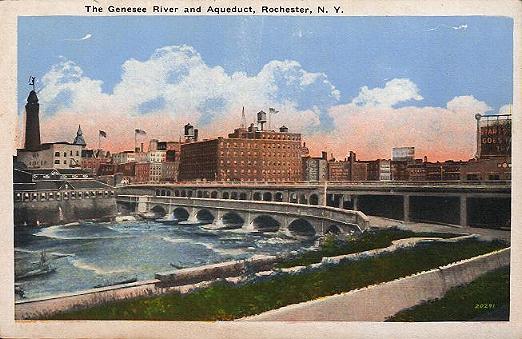
A short time ago I found a website that has lots of historical photos and postcards along with time-lines named Vintage Views of Rochester. Apparently I’m the last person in Rochester to find it, but i thought I’d share it anyway. The following is a postcard depicting the aqueduct (broad street) as well as the building I work in (the large brick building in the center of the postcard).

Genesee River and Aqueduct

The Cloverfield Case

Rachel and I saw Cloverfield on Friday. It wasn’t planned, in fact I didn’t have a whole lot of desire to see it at least not until I heard everyone’s reaction. That being said my friend Brian called and begged us to go (read: asked if I want to see it) so naturally I didn’t want to disappoint.

Cloverfield was awesome. I thought the hand held cameras would distract you from the storyline and takeaway from the overall movie. It had the exact opposite effect. The movie simply couldn’t have worked as a regularly filmed movie, at least not successfully. The reason it worked so well is the home movie added a very personal touch. In the beginning you laughed with the characters and in the end you cried with them all because you felt you were watching your best friend’s Youtube video. The movie also portrays our current generations desire to document everything and J. J. Abrams doesn’t hide that this was part of his motivation for the movie style.

I haven’t been a fan of a movie’s ending in quite a while but Cloverfield’s ending is the only way I can imagine it. That’s not to say it doesn’t leave you with a sense of ‘WTF’ and ‘damn I hope they don’t make a sequal’ but it works regardless.

If you haven’t seen the trailer I’ve embedded it for your viewing pleasure below.

[ifilm]2913955[/ifilm]

Old and Busted, Meet New Hotness (Apple TV Take 2)

AppleIt’s been said before but I’ll say it again. Blueray and HD-DVD have lost and the media wars don’t matter. I thought it was going to take a lot longer than this but Streaming HD content is here. Enter the new and improved (and cheaper) Apple TV. Every Tech Blog in the world is making announcements from MacWorld 2008 and the most important announcement isn’t really the new streaming rentals, iPhone update, Time Capsule or even the new MacBook Air. The most important announcement is their Apple TV Take 2. They even admitted their first version was a failure. That’s a big step for a company like apple.

Rent High Definition Movies Directly from Your Widescreen…rent movies from a catalog of over 1,000 titles by the end of February, including over 100 titles in stunning high definition video with 5.1 Dolby Digital surround sound, with no computer required.

That’s it. Move over Blueray and HD-DVD, Your days are numbered. With the new ability to forgo the computer and rent or buy directly from your living room at a price point lower than most Blueray or HD-DVD players out at the moment why would you do anything else?

Apple is definitely a forward looking company and I’m glad they’re making the push for streaming media. My only wish is that they’d realize that some people would rather pay for a subscription service than pay per use.

Life In The Country

Sunrise in Marion My parents are off on another adventure. This time they’re in Florida. I wonder if this will become a recurring theme now that my Father is retired? My mother claims that she’s going to work forever just for the health insurance benefits she gets through Wegmans so maybe not. I can’t imagine she’ll hold out quite that long, especially at this pace, though.

I’m happy for them. They’ve worked their whole lives and now get to reap the rewards. I hope they take even more trips so I can see the pictures. Or maybe next time they’ll take us with them? Or maybe we’ll take them with us.

While they’re gone this time we’re watching the house, well not the house really but my 17 year old dog Chewy. She was born in the middle of the Ice Storm of 1991 and is probably the healthiest 17 year old dog you’ll ever see.

I never realized while growing up here but the scenery is quite beautiful. My parents live in Marion Ny in the same house that I grew up in. While I was growing up it was completely surrounded by fields, valleys and farms. now there are 3 houses across the street instead of fields, and they mostly block the view. Even so the colors of the trees on the other side of the valley are always gorgeous and I had forgotten the sunrises were often so amazing. I woke up to a beautiful sunrise Thursday morning. What a wonderful way to start the day.

Fix Those Pesky Unread Shared Items

I’m a fan of Google Reader. I’ve written here before about their new improvements and how great it is to work in an iterative development area where improvements happen daily.

Even a great team has a failure once and a while. They recently added the ability to see your Google Talk Friend’s shared items within Google Reader. While this shows that Google has great plans for integrating their services, I’ve had problems with this feature right off the bat and from what I understand I’m not the only one.

My biggest problem was that the counter of unread items would go up but my ability to read said items was gone. I could no longer get updates of my friend’s shared items essentially rendering the feature useless. If you’re like me you’ve been plagued by the following screen since they introduced the feature:

Shared Item - Wrong Count

Thanks to Graham the helpful Google Reader Guide we now have a solution and it’s easier than you think.

  1. Make sure you’re logged into Google Reader and goto Settings -> Friends.
  2. Scroll down until you see the user who’s items won’t update correctly.
  3. Click Hide. You should see a picture like so:

    Hidden Google Reader User

  4. Go back to the main page by either clicking ‘<< Back to Google Reader’ or the Google Reader logo.
  5. Your friend should no longer appear at all in the ‘Friends Shared Items’ list.
  6. Go back to Settings >> Friends.
  7. Find Him/Her again.
  8. Click ‘Show.’
  9. Go back to the main page again.
  10. It might take a second but they will appear in the list again. Once they do they’ll have a small red ‘new!’ next to their name. Click their username.

At this point you will have their new shared items displayed. From now on things will act normally and you can mark the items as read as you see fit.

These instructions are a complete interpretation of Graham the helpful Google Reader Guide’s original post.

Go Digital with Your Discs

Old DiscsThere are several reasons to get rid of your discs. This includes software you’ve purchased, backup discs, games, and even operating systems. I had two reasons to get rid of my discs. One was that the rack of discs was another piece of clutter in my home office. The other more important reason is CD’s and DVD’s have a shelf life. I recently pulled a disc from the rack and attempted to use it. It had no scratches or scuffs but was completely unreadable.

To get go digital with your hard copy discs follow these simple steps:

  1. Take an Inventory
    You can’t determine how to get rid of what you have unless you know what you have. I suggest creating 3 piles.

    • Discs you can easily replace for free. These will probably include backup copies and driver discs.
    • Unimportant discs you haven’t used in the past 6 months and probably won’t use within the next 6 months but need to keep. These most likely include things like Software Installation Discs.
    • Discs which you use occasionally and discs that are too important to lose. These will most likely include things like games which need to be in the drive to play and operating systems.
  2. Throw out your replaceable discs
    They’re replaceable. You don’t need to keep them around. Things like drivers can easily be downloaded and are often well out of date anyway. Backup discs are an old method of backup and should be replaced with off site storage of some sort.
  3. Box up the unimportant discs you haven’t used in 6 months
    There’s probably a reason you haven’t used them. Either they’re for software you keep installed and have no reason to reinstall them or they’re for software you don’t use often at all. In either case chances
    you won’t use it again for 6 months or more. Why keep it around cluttering your office.
  4. Rip the important discs to ISO disc images
    You probably have plenty of storage. Why not use it to store your discs in a reliable way? It also makes accessing them easier as all you need to do is locate the disc on your hard drive and mount it.
  5. Put purchased discs that you can’t part with back in their box
    You’ve already ripped them so you can access them any time you want. Put the discs back in their box and put the boxes on a shelf or in a box.
  6. Throw out the remaining discs
    Clean up your office by getting rid of all the discs and the cd rack itself.

More and more our software is moving to downloadable or even online applications. Get rid of your hard copy media now and stay ahead of the curve!

Feed Oriented Browsing

RSS ImageHow do you browse the internet? It’s a funny question to ask really, but you’d be surprised at the different ways people will respond.

  • I look at the front page of Digg
  • I check my friends new Del.icio.us bookmarks
  • I search
  • I visit my bookmarks and see if there is anything new of interest
  • I browse my friends profiles on Facebook
  • I check MySpace updates
  • I watch top rated YouTube videos
  • I see whats new at CollegeHumor

There are many many many more ways to browse the internet and far too many to list here.

I use none of these and yet all of them. I prefer to call how I browse the web Feed Oriented Browsing or FOB for short. It’s something I’ve only begun doing this year. As my final post in 2007 I thought I’d share it.

What is Feed Oriented Browsing? It is a way of browsing the web that gives you the most relevant and up to date information at your fingertips without looking for it.

How can I get the information I want without looking for it? It’s not as hard as you might think. Instead of checking if there’s new information, you are told that a website you found interesting in the past has a new update.

Everytime you go to a website you already make a relatively quick decision on whether or not the site contains relevant information for you or not. It could be the information is not immediately useful but could be used as a reference in the future or it could be the answer you’re looking for right now. Normally, in these cases you would bookmark it either in your browser or using a web service such as del.icio.us.

Bookmarks are stale and not useful. We all know that technology in general changes so fast what you know today is outdated tomorrow. Since Bookmarks point to a particular page this means that information is likely to be outdated by more relevant and better information somewhere else. Does this mean you should just forget the site and move on? No! Your mind has already made the determination that the site contains relevant and useful information. Chances are the website you found is likely to share new information that you will find interesting and relevant in the future. This is the power of Feed Oriented Browsing. Instead of bookmarking a stale link to the site, add the site’s feed to your Reader. If the site doesn’t have a feed create one using a service like feed43 or feeditiy. Often times the feed will contain items that does interest you and items that don’t interest you. If that’s the case use a tool like feedrinse or yahoo pipes to clean up the feed so that it best matches your interests.

The real benefit of FOB appears after you’ve built up a good set of feeds. At that point you can stop browsing the old way all together. Instead use your reader to find new relevant sites. If you like discovering new feeds and new sites still, rather than searching for common phrases all the time, subscribe to a feed of your search. You can easily do this on sites like Digg and Del.icio.us. You can subscribe to searches or tags so that if a new item appears in that list you’ll get notified. If you’re using FOB correctly it will be rare that you need to leave your reader except to discover a new feed and even that is possible within some readers.

Observe your browsing habits. If the first thing you do after leaving your reader is visit the front page of Digg then it’s time to subscribe. If you then hop over to your friends blog to see if he posted last night… it’s time to subscribe.

It takes time to build up a good list of feeds. Making the switch to FOB doesn’t happen over night. You begin the process by visiting your reader first every day. Only once you’ve read all the items or marked them as read should you move on to the other sites you use.

Once you adapt this method of browsing the web it will truly change your web experience. A few months ago I read a study that made a bold claim that 2 out of every 3 ‘clicks’ on the internet were wasted because the content at the other end of the link had not yet been updated (I cannot speak to the accuracy of the numbers but the point is clear regardless). Meaning if someone checked a particular website three times in a day chances are that the website would only be updated one of those times. What a waste!

Often times you search the web to find the answer to a particular problem. You find an excellent resource that tells you exactly how to solve your problem and then forget all about that site again. If you have the same problem in the future you can always get back to that site by searching again right? Well, maybe. Search indexes change and you may or may not be able to remember the search you used. However; If you subscribed to the feed for the site, that piece of information will be in your reader and if you use a reader (such as Google Reader) that allows you to tag and search items it will be incredibly easy to find.

In addition to finding old pieces of information, it is likely that the site that had that great piece of information for you in the past will have more great information for you in the future. If you subscribe you’ll see new information posted by them whenever they update which means you’ll get new information before you even realize you need it.

if you subscribe to every feed you come across won’t your reader get so bloated its unusable? Yep. That’s why you need to be selective in your feeds. Determine whether or not the site has relevant information to you or not before subscribing. To find out if the site has other useful information browse for a moment and see if any other articles besides the one you’re looking at are interesting. If not then don’t subscribe simply use del.icio.us or digg or some other such service to bookmark it. You have already subscribed to your bookmark feed right? If so then that one article will show up in your reader and nothing else from the site.

Once you subscribe to a feed your job is not done. That feed needs to satisfy your interest. If it doesn’t then it needs to go. I give every feed I subscribe to one month. If i don’t receive at least one more piece of relevant and interesting information within one month of subscribing then that feed is gone. Additionally if the ratio of articles posted to articles I find interesting is too low I either attempt to clean it up with feedrinse or yahoo pipes or simply unsubscribe.

Hopefully Feed Oriented Browsing will get you started on the road to a better web experience. It has certainly helped me.

If you’re struggling with feeds and need to learn a bit more before you dive in check out this great video presentation entitled RSS in Plain English. RSS is a type of feed.

If you found this post interesting you might like to subscribe to my syndication category in which I try to post tips to help you deal with all the available feeds out there.